Monday, April 20, 2020

What Is Brave Browser And How Does It Compares To Chrome ?

       There are more competing web browsers than ever, with many serving different niches. One example is Brave, which has an unapologetic focus on user privacy and comes with a radical reimagining of how online advertising ought to work.

Brave is based on Chromium, the open-source code that forms the basis for Google Chrome. But is it any good? And for those using Google Chrome, is it worth switching to Brave?

A Brief History of Brave

When Brendan Eich and Brian Bondy founded Brave in 2015, they wanted to address what they perceived as the biggest problem with the modern internet: intrusive advertising.

Advertising is the fuel that powers the modern internet, allowing websites and digital creatives to monetize their content without charging users for each article read or every video watched. That said, Eich and Bondy think it's got some pretty significant downsides, citing the potentially privacy-harming nature of advertising trackers, as well as the negative impact it has on the overall user experience.

Brave's first release came about amidst two significant trends, which ultimately defined the new browser.

First, the cryptocurrency revolution was in full swing. Companies and individuals alike—like the pseudonymous Satoshi Nakamoto—were creating their own decentralized cryptocurrencies, which quickly reached billion-dollar market capitalizations. Second, ad-blocking technology entered the mainstream. By the decade's halfway point, millions of people were blocking ads online across all browsers, desktop, and mobile.

Brave was one of the first browsers to include built advertisement and tracker blockers, leapfrogging the likes of Opera. It also came with its own cryptocurrency, called BAT (or Basic Attention Token), allowing users to reimburse the sites and creators they like.

Essentially, Brave wants to re-imagine how the Internet works: not just on a usability level, but on an economic level. It's an undeniably radical vision, but you wouldn't expect any less, given its founding team.

Brendan Eich is the inventor of the JavaScript programming language and co-founded the Mozilla Foundation, which created the popular Firefox web browser. He also briefly served as the foundation's CEO before resigning following a bitter controversy over his political donations. Brian Bondy is also ex-Mozilla, and spent time at education startup Khan Academy.

Beyond that, Brave is a reasonably standard browser. Like Edge, Chrome, and Opera, it's built upon the Blink rendering engine, which means webpages should work as you expect. Brave is also compatible with Chrome extensions.

To Track or Not to Track?

The Brave browser is characterized by an unapologetically pathological focus on user privacy. Its primary mechanism for delivering this is something called Brave Shields, which combines traditional tracker-blocking technology, paired with several under-the-hood browser configuration tweaks. This feature is turned on by default, although users can easily de-activate it should it cause websites to break.

As you might expect, Brave blocks trackers based on whether they appear in several public blocklists. Going beyond that, it also uses cloud-based machine learning to identify trackers that slipped through the net, in addition to browser-based heuristics.

Brave Shields also forces sites to use HTTPS, where both an encrypted and unencrypted option is available. By forcing users to use an encrypted version of a website, it makes it harder for those on your network to intercept and interfere with the content you visit. While this sounds abstract, it's more common than you think. Public Wi-Fi hotspots, like those found in airports, routinely inject their own ads into websites being visited. Although upgrading to SSL isn't a silver bullet against all security and privacy, it's a pretty significant security upgrade.

Separately from Shields, Brave also includes a built-in TOR browser. TOR allows users to circumvent local censorship — like that which occurs on a national or ISP level — by routing traffic through other computers on its decentralized network.

The tool, which was funded by the US Department of Defence, is frequently used by dissidents living under authoritarian governments to escape surveillance and censorship. Both Facebook and the BBC offer their own TOR 'onion' sites for this reason. Somewhat of a double-edged sword, it's also used by bad actors — drug dealers, hackers, and other online criminals — to operate free from the scrutiny of law enforcement.

Going Batty for BAT

As mentioned, Brave uses its own cryptocurrency, called BAT, for rewarding websites for the content they appreciate. Microtransaction-based tipping is nothing new. Flattr pioneered it almost a decade ago. What's different about BAT is both the implementation and the scale.

While Flattr used traditional fiat-based currencies (by that, I mean currencies like pounds, dollars, and euros), Flattr has its own fungible (essentially, convertible) cryptocurrency based on the Ethereum blockchain. And, as a browser with mainstream aspirations, Brave can deliver this concept to millions of people.

So, let's talk about how it works. Firstly, it's entirely optional. Users can choose to use brave without even touching the BAT micropayments system. By default, it's turned off.

If you decide to opt-in, users can purchase BAT through a cryptocurrency exchange, like Coinbase. They can also earn it by viewing "privacy-respecting" ads. Rather than traditional banner-based advertising, these present as push notifications. Users can choose to dismiss a notification or view it in full-screen.

Unlike traditional advertising networks, the calculations determining what advertisements to show you are performed on your own device. This means the advertiser isn't able to build a profile of you and your interests.

Of all advertising revenue that Brave receives, it shares 70 percent with users, keeping a 30 percent share. It's also worth noting that Brave's advertising program is only available in a handful of countries, mostly scattered across Europe and the Americas, plus Israel, India, Australia, South Africa, the Philippines, Singapore, and New Zealand.

Once you have some BAT, you can spend it. You can choose to automatically contribute to specific sites or tip creators on an ad-hoc basis. You can even tip individual tweets. When you open Twitter through your browser, Brave will automatically add a button to each post within your newsfeed. Pressing it will open a drop-down window, where you confirm your tip.

The sites accepting BAT include The Guardian, The Washington Post, and Slate, as well as popular tech publications like Android Police and The Register. Brave also plans to allow users to spend their rewards for more tangible rewards: like hotel stays, gift cards, and restaurant vouchers. At the time of publication, this system isn't yet available.

How Does Brave Compare to Google Chrome?

Google Chrome commands the majority of the browser market, with other competitors, including Brave, trailing behind. Independent figures about Brave's adoption aren't readily available. It doesn't show on NetMarketShare or W3Counter, as it uses Chrome's user-agent string. In October, however, the company behind Brave reported eight million monthly active users and 2.8 million daily active users.

While that's pocket change in the broader Internet ecosystem, it's still fairly impressive for a young company that's trying to disrupt a market dominated by a small handful of well-entrenched players, like Mozilla, Google, Microsoft, and Apple.

Brave promises to be faster and less energy-intensive than rival browsers, and it delivers on this. Scientific benchmarks, plus my own anecdotal experiences, pay testament to this. Furthermore, when you open a new tab, Brave shows you how much time you've saved by using it.

However, there are small annoyances you perhaps wouldn't get with other browsers. Functionality that comes standard in Chrome, like the ability to automatically translate webpages, is only available through plug-ins.

You also occasionally encounter webpages that force you to "drop" your shield to access it. And while this isn't Brave's fault, it does highlight the fact that a huge part of the conventional Internet isn't quite prepared to embrace its utopian vision of how content should be monetized.

A Brave New World?

Should you ditch Google Chrome for Brave? Maybe. There's a lot to appreciate about this browser. While it's generally fast, it also feels extremely polished. I appreciate the fact that it comes with both light and dark themes and the ease in which it allows users to protect their privacy from cross-site trackers.

But Brave is more than a browser. It's a statement about how the Internet should work. And while most people will agree that the pace and scale of online tracking should be rolled back, many may disagree whether cryptocurrencies are the best way to monetize content that is otherwise funded by traditional in-browser advertising. And are push notification-based advertisements on your desktop really a less irritating form of advertising?

Ultimately, the question is whether you agree with Brave's approach or not.

@£√£RYTHING NT

Related links

How To Repair A Crashed SD Card And Protect Your Data

One of the many reasons users prefer Android devices is the ability to expand the amount of available storage space using the MicroSD Card. Since we have the ability add up to 256GB of external storage to Android devices today, you're bound to choke up when the SD card crashes without any tell-tale signs.
If you're experiencing issues on how to repair a crashed SD card on your Android device, there are certain fixes you can try out. Since there's not a singular solution to SD Card issues, we've created a guide to help you detect the issue with your external storage and mentioned multiple solutions to get your SD card working and even retrieve your stored data along with it.


Before you start

Don't format the card if you want to retain any of the photos on it. You can follow the tips in our separate article on how to format a write-protected SD card after you've tried to recover any files that are on your card.

Now, try and find a different card reader. If you've inserted an SD card into your laptop or PC's built-in slot and nothing happens, try using a different computer or a USB card reader.
Sometimes it's the reader at fault – not the card. You can buy a USB SD card reader online for just a couple of pounds which will accept both microSD and standard SD cards.

Steps to Repair a Crashed SD Card and Protect your Data:

Step 1 – Physically clean the SD Card

Despite being durable and built to last, SD cards are prone to crashing sometimes due to physical damage. Since you carry your phone around everywhere, some dirt and dust are bound to fill up in the cracks, that can make SD card stop working from time to time.
The first thing you can try to do on how to repair a crashed SD card is physically scrub and clean it.
  • Remove the MicroSD card from your Android device and place it on a clean surface. Make sure that you turn off your phone before pulling out the SD card for safety.
  • Flip the MicroSD card and using a white eraser, gently scrub the gold contact pins of the SD card to get rid of any residual dirt or grime.
  • If you have an alcohol-based cleaning solution or even nail polish remover around, dab it on to the connector pins using a Q-tip and gently rub it.
Once the SD card has dried out, you can plug it back into your Android device and turn it on to see if the solution has worked.


Step 2 – Format the SD Card

If your SD card is being detected by the Android device but you're having trouble accessing the saved files, there's a good chance that the files are corrupt. This could either be due to a particular broken file in the saved storage, or a virus that is causing the issue.
Either way, the only option there is left for you to try out is make the SD card reusable for formatting it.
  • From the home screen of your Android device, head over to the Settings app and then scroll down to find the Storage
  • In the Storage tab, you'll be able to find the Erase SD Card option, so go ahead and select it.
  • Confirm your action to delete all of the files and folders stored on your SD card and this should effectively solve the issue.

Step 3 – Check the SD card compatibility

If you are trying to figure out how to repair a crashed SD card on an older Android device, you might just need to look at the details more carefully. If your SD card fails to be recognized on the mobile device but works with your computer, the problem could be related to compatibility.
  • If the MicroSD card that you are trying to use with your older phone is SDXC version (built for higher transfer speeds), it will not be recognized.
  • Look up the maximum capacity of expandable storage that is supported by your device, since they can vary from starting at 64GB to all the way up to 256GB.

Step 4 – Diagnose the SD card using a PC

If a simple format did not help you solve the SD card problem, you might need a more technical analysis of the issue. To do so, you can plug in your SD card into a computer and use the diagnostic tools to find out the pertaining errors and effectively fix them.
  • Connect your Android mobile device to a computer using a USB cable.
  • Make sure that you connect Android as MSC (Mass storage mode) and not MTP (Media transfer mode). You can do this using the notification menu once you connect the phone to your computer.
  • Launch the Windows Explorer and right click on the SD card driver you see on the screen. In the options menu, choose Properties – Tools – Error Checking and wait for the entire process to complete.
  • The computer will try to update the software for your SD card and fix any errors that are causing it to crash.

Step 5 – Use chkdsk to fix/repair a corrupted SD card without data loss

The "chkdsk" command is your first choice for damaged SD card repair. Requiring no format, it allows you to fix or repair a corrupted SD card and regain access to all your important files on the device. Let's see how it works. (I'm using Windows 7 for this demonstration)
1. Plug in your SD card to your computer with a card reader.
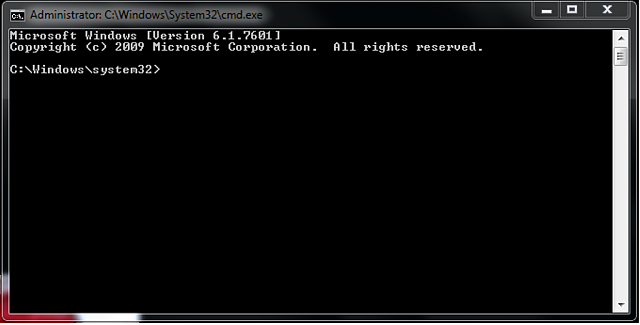
2. Go to the start menu, type in "cmd" in a search bar, hit enter and then you can see something named "cmd. exe" in a list of programs.
3. Right-click "cmd. exe" and then you will get the following command windows that allow you to fix your corrupted SD card without formatting.
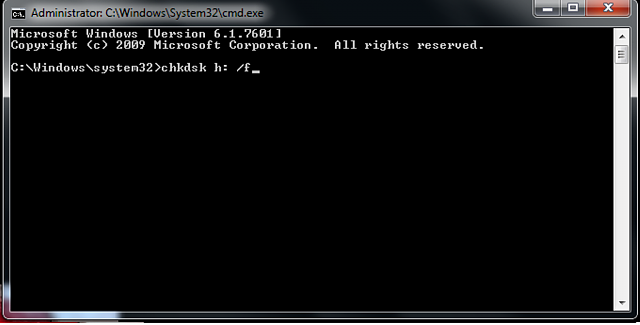
4. Type in "chkdsk /X /f sd card letter:" or "chkdsk sd card letter: /f ", for example,"chkdsk /X /f G:" or "chkdsk h: /f".
After finishing all the steps, Windows will have checked and fixed the file system of the SD card. It usually takes several minutes. After that, if you see "Windows has made corrections to the file system" in the command window, then congratulations! The damaged SD card is successfully fixed and you can see your data again. If not, you should try a third-party data recovery software to retrieve your files from the damaged SD card and repair it by formatting.
Once the process has been completed, you can go ahead and pop the SD card back into your Android device and see if the issue has been resolved.

Step 6 : Use EaseUS Data Recovery Wizard to recover data from damaged SD card

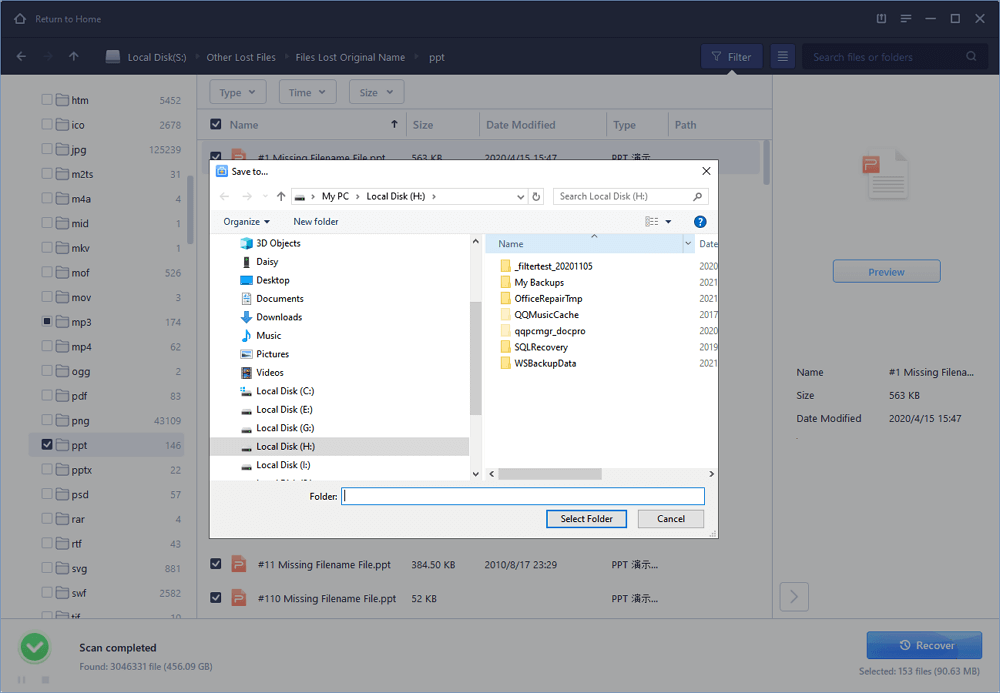
1. Connect the corrupted SD card to your PC, launch EaseUS's data recovery software, select the card and click "Scan".
2. A quick scan will first start to search all the lost and existing data on the SD card. And after that, a deep scan will automatically launch in order to find more files.
3. After the scan, choose those files you want to recover and click the "Recover" button to retrieve them back.

Final Words :

So finally through this article, you have got to know about the method by which the SD card could be repaired and hence the data in it could be saved for the further access. We have tried to present the method in easy to grab manner and we believe that you could possibly get to know about it easily. Hope that you would have liked the information in this post, if it is so then please share it with others. Also, do not forget to share the post with others, let most of the people know about the method. Share your comments about the post through using the comment box below. At last never the fewer thanks for reading this post!

Read more


  1. Hacking Tools 2019
  2. Hack Rom Tools
  3. Pentest Tools Bluekeep
  4. Best Hacking Tools 2020
  5. Nsa Hacker Tools
  6. Bluetooth Hacking Tools Kali
  7. Hacking Tools For Windows
  8. Pentest Tools Github
  9. Hacks And Tools
  10. Pentest Tools Open Source
  11. Pentest Tools Apk
  12. Hack Tools For Pc
  13. Hacking Tools For Mac
  14. Easy Hack Tools
  15. Tools 4 Hack
  16. Hacker Tools Linux
  17. Usb Pentest Tools
  18. Pentest Recon Tools
  19. Android Hack Tools Github
  20. Hacker Tools Windows
  21. Pentest Tools Apk
  22. Hacking Tools 2020
  23. Hack Tools Online

Vulnx V2.0 - An Intelligent Bot Auto Shell Injector That Detect Vulnerabilities In Multiple Types Of CMS {(Wordpress , Joomla , Drupal , Prestashop ...)


Vulnx is An Intelligent Bot Auto Shell Injector that detects vulnerabilities in multiple types of Cms, fast cms detection,informations gathering and vulnerabilitie Scanning of the target like subdomains, ipaddresses, country, org, timezone, region, ans and more ...
Instead of injecting each and every shell manually like all the other tools do, VulnX analyses the target website checking the presence of a vulnerabilitie if so the shell will be Injected.searching urls with dorks Tool.

Features
  • Detects cms (wordpress, joomla, prestashop, drupal, opencart, magento, lokomedia)
  • Target informations gatherings
  • Target Subdomains gathering
  • Multi-threading on demand
  • Checks for vulnerabilities
  • Auto shell injector
  • Exploit dork searcher
  • Ports Scan High Level
  • Dns-Servers Dump
  • Input multiple target to scan.
  • Dorks Listing by Name& by ExploitName.
  • Export multiple target from Dorks into a logfile.

DNS-Map-Results
To do this,run a scan with the --dns flag and -d for subdomains. To generate a map of isetso.rnu.tn, you can run the command vulnx -u isetso.rnu.tn --dns -d --output $PATHin a new terminal.
$PATH : Where the graphs results will be stored.


Let's generates an image displaying target Subdomains,MX & DNS data.


Exploits


Joomla

Wordpress

Drupal

PrestaShop

Opencart

VulnxMode
NEW vulnx now have an interactive mode. URLSET


DORKSET


Available command line options
READ VULNX WIKI
usage: vulnx [options]

-u --url url target
-D --dorks search webs with dorks
-o --output specify output directory
-t --timeout http requests timeout
-c --cms-info search cms info[themes,plugins,user,version..]
-e --exploit searching vulnerability & run exploits
-w --web-info web informations gathering
-d --domain-info subdomains informations gathering
-l, --dork-list list names of dorks exploits
-n, --number-page number page of search engine(Google)
-p, --ports ports to scan
-i, --input specify domains to scan from an input file
--threads number of threads
--dns dns informations gathering

Docker
VulnX in DOCKER !!.
$ git clone https://github.com/anouarbensaad/VulnX.git
$ cd VulnX
$ docker build -t vulnx ./docker/
$ docker run -it --name vulnx vulnx:latest -u http://example.com
run vulnx container in interactive mode


to view logfiles mount it in a volume like so:
$ docker run -it --name vulnx -v "$PWD/logs:/VulnX/logs" vulnx:latest -u http://example.com
change the mounting directory..
VOLUME [ "$PATH" ]

Install vulnx on Ubuntu
$ git clone https://github.com/anouarbensaad/vulnx.git
$ cd VulnX
$ chmod +x install.sh
$ ./install.sh
Now run vulnx


Install vulnx on Termux
$ pkg update
$ pkg install -y git
$ git clone http://github.com/anouarbensaad/vulnx
$ cd vulnx
$ chmod +x install.sh
$ ./install.sh
CLICK HERE TO SHOW THE RESULT

Install vulnx in Windows
  • click here to download vulnx
  • download and install python3
  • unzip vulnx-master.zip in c:/
  • open the command prompt cmd.
> cd c:/vulnx-master
> python vulnx.py

example command with options : settimeout=3 , cms-gathering = all , -d subdomains-gathering , run --exploits
vulnx -u http://example.com --timeout 3 -c all -d -w --exploit

example command for searching dorks : -D or --dorks , -l --list-dorks
vulnx --list-dorks return table of exploits name. vulnx -D blaze return urls found with blaze dork

Versions

Warning!
I Am Not Responsible of any Illegal Use

Contribution & License
You can contribute in following ways:
  • Report bugs & add issues
  • Search for new vulnerability
  • Develop plugins
  • Searching Exploits
  • Give suggestions (Ideas) to make it better
Do you want to have a conversation in private? email me : Bensaad.tig@gmail.com
VulnX is licensed under GPL-3.0 License


via KitPloit

Related articles


  1. Pentest Tools Windows
  2. Hacker Techniques Tools And Incident Handling
  3. Pentest Tools For Mac
  4. Hacker Tools 2020
  5. Kik Hack Tools
  6. Best Hacking Tools 2019
  7. Hacker Tools Linux
  8. Hacker Tools
  9. Hacker Tools Free Download
  10. Usb Pentest Tools
  11. What Is Hacking Tools
  12. Ethical Hacker Tools
  13. Hacker Tools Free Download
  14. Nsa Hack Tools
  15. Hacker Tools Free
  16. Hackers Toolbox
  17. Hacking App
  18. Hacker Tools Software
  19. Hacking Tools For Mac
  20. Hacker Tools Online
  21. Hacking Tools Online
  22. Hacking Tools 2020
  23. Pentest Tools Kali Linux
  24. Pentest Tools Url Fuzzer
  25. Hacking Tools For Pc

Samurai: Web Testing Framework


"The Samurai Web Testing Framework is a live linux environment that has been pre-configured to function as a web pen-testing environment. The CD contains the best of the open source and free tools that focus on testing and attacking websites. In developing this environment, we have based our tool selection on the tools we use in our security practice. We have included the tools used in all four steps of a web pen-test." read more...


Website: http://samurai.inguardians.com

Related word

Raccoon - A High Performance Offensive Security Tool For Reconnaissance And Vulnerability Scanning


Offensive Security Tool for Reconnaissance and Information Gathering.

Features
  • DNS details
  • DNS visual mapping using DNS dumpster
  • WHOIS information
  • TLS Data - supported ciphers, TLS versions, certificate details, and SANs
  • Port Scan
  • Services and scripts scan
  • URL fuzzing and dir/file detection
  • Subdomain enumeration - uses Google Dorking, DNS dumpster queries, SAN discovery, and brute-force
  • Web application data retrieval:
    • CMS detection
    • Web server info and X-Powered-By
    • robots.txt and sitemap extraction
    • Cookie inspection
    • Extracts all fuzzable URLs
    • Discovers HTML forms
    • Retrieves all Email addresses
  • Detects known WAFs
  • Supports anonymous routing through Tor/Proxies
  • Uses asyncio for improved performance
  • Saves output to files - separates targets by folders and modules by files

Roadmap and TODOs
  • Support multiple hosts (read from the file)
  • Rate limit evasion
  • OWASP vulnerabilities scan (RFI, RCE, XSS, SQLi etc.)
  • SearchSploit lookup on results
  • IP ranges support
  • CIDR notation support
  • More output formats

About
A raccoon is a tool made for reconnaissance and information gathering with an emphasis on simplicity.
It will do everything from fetching DNS records, retrieving WHOIS information, obtaining TLS data, detecting WAF presence and up to threaded dir busting and subdomain enumeration. Every scan outputs to a corresponding file.
As most of Raccoon's scans are independent and do not rely on each other's results, it utilizes Python's asyncio to run most scans asynchronously.
Raccoon supports Tor/proxy for anonymous routing. It uses default wordlists (for URL fuzzing and subdomain discovery) from the amazing SecLists repository but different lists can be passed as arguments.
For more options - see "Usage".

Installation
For the latest stable version:
pip install raccoon-scanner
Or clone the GitHub repository for the latest features and changes:
git clone https://github.com/evyatarmeged/Raccoon.git
cd Raccoon
python raccoon_src/main.py

Prerequisites
Raccoon uses Nmap to scan ports as well as utilizes some other Nmap scripts and features. It is mandatory that you have it installed before running Raccoon.
OpenSSL is also used for TLS/SSL scans and should be installed as well.

Usage
Usage: raccoon [OPTIONS]

Options:
--version Show the version and exit.
-t, --target TEXT Target to scan [required]
-d, --dns-records TEXT Comma separated DNS records to query.
Defaults to: A,MX,NS,CNAME,SOA,TXT
--tor-routing Route HTTP traffic through Tor (uses port
9050). Slows total runtime significantly
--proxy-list TEXT Path to proxy list file that would be used
for routing HTTP traffic. A proxy from the
list will be chosen at random for each
request. Slows total runtime
--proxy TEXT Proxy address to route HTTP traffic through.
Slows total runtime
-w, --wordlist TEXT Path to wordlist that would be used for URL
fuzzing
-T, --threads INTEGER Number of threads to use for URL
Fuzzing/Subdomain enumeration. Default: 25
--ignored-response-codes TEXT Comma separated list of HTTP status code to
ignore for fuzzing. Defaults to:
302,400,401,402,403,404,503,504
--subdomain-list TEXT Path to subdomain list file that would be
used for enumeration
-S, --scripts Run Nmap scan with -sC flag
-s, --services Run Nmap scan with -sV flag
-f, --full-scan Run Nmap scan with both -sV and -sC
-p, --port TEXT Use this port range for Nmap scan instead of
the default
--tls-port INTEGER Use this port for TLS queries. Default: 443
--skip-health-check Do not test for target host availability
-fr, --follow-redirects Follow redirects when fuzzing. Default: True
--no-url-fuzzing Do not fuzz URLs
--no-sub-enum Do not bruteforce subdomains
-q, --quiet Do not output to stdout
-o, --outdir TEXT Directory destination for scan output
--help Show this message and exit.

Screenshots

HTB challenge example scan:


Results folder tree after a scan:


More info